Download Shadowrocket Installation guide for all platforms
Choose your device and processor architecture, then follow the system prompts to install. Import your existing subscription or server details after installation.
Current version v2.2.92 · iPhone / iPad App Store: $2.99 one-time; Mac, Windows, Android, and Linux are free
Download source
iPhone / iPad: App Store Mac / Windows / Android / Linux: this site
2 ways to get it
iPhone / iPad: $2.99 one-time Other platforms: free
Developer and app ID
Shadow Launch Technology Limited 932747118
Current version
v2.2.92 Package details are read from this site's manifest
01 / Choose an installer
All-platform downloads
Device detection only helps identify a platform; it does not check processor architecture. On Mac, verify the chip manually. On Linux, check your distribution and package format. All links below remain available if your browser does not identify your device.
iPhone / iPad
$2.99 one-time. Get the iPhone / iPad version from the App Store. The Mac, Windows, Android, and Linux versions are free. System requirements: iOS / iPadOS 13.0 or later, as listed on the App Store product page.
After opening the link, check the product name, developer, and app ID, then follow the store prompts to purchase or redownload. iPhone and iPad can share one purchase when using the same purchasing Apple ID. The amount shown in local currency depends on the current storefront.
Free. Requires macOS 12 or later. The Windows, Android, and Linux versions are also free; the iPhone / iPad version is a $2.99 one-time App Store purchase. The two Mac installers are for Apple Silicon and Intel processors. Do not choose based on the computer's appearance.
After downloading, open the .dmg, move Shadowrocket to Applications, then launch it from the Applications folder. If a developer verification prompt appears the first time you open it, follow the installation steps below. Do not repeatedly install packages for different architectures.
Not sure which to choose? Open About This Mac and check Chip / Processor.
Windows
Free. A 64-bit Windows .exe installer is available. The Mac, Android, and Linux versions are also free; the iPhone / iPad version is a $2.99 one-time App Store purchase. First check System type on the system's About page. A 64-bit-capable processor does not mean the installed system is necessarily 64-bit.
Wait for the browser download to finish, then open the installer and follow the setup wizard. If SmartScreen pauses the launch, first confirm the file came from the button on this page, then select More info. Installing the app does not connect it; you must import your existing service details separately.
Free. An arm64 .apk is available for most phones and tablets released in recent years with this architecture. The Mac, Windows, and Linux versions are also free; the iPhone / iPad version is a $2.99 one-time App Store purchase. Check the architecture on older devices; do not rely on the brand alone to determine compatibility.
When the download finishes, open the file from your browser's downloads list. If the system requests installation permission, enable Allow from this source for the browser you are using. You can turn off this permission after installation. If an in-app browser cannot save the file, open this page in your system browser.
Free. Packages are available for x86_64 / amd64. The Mac, Windows, and Android versions are also free; the iPhone / iPad version is a $2.99 one-time App Store purchase. Choose .deb for Debian / Ubuntu, .rpm for Fedora / openSUSE, or AppImage for other distributions, and check your system's runtime requirements.
Most devices need only one package format. When installing through your distribution's package manager, read the dependency prompts. For AppImage, add executable permission before launch. Different package formats do not mean you need to install multiple clients.
Desktop and Android installers do not have a code signature, so the system may block installation or launch the first time. Confirm the package came from this site and matches your architecture before taking action on that file. Do not disable system-wide security protections just to launch one app. On managed devices, follow your administrator's settings.
First-time installation and launch steps for Shadowrocket on each system
System and prompt
Steps
Check first
Windows / SmartScreen
If Windows shows the Your PC is protected message, click More info, then Run anyway, and continue with the setup wizard.
Confirm the installer came from this site's download button. If only a Close button is available or organizational policy blocks the app, contact your administrator. This process does not apply to every type of block.
macOS / Developer cannot be verified
Move the app to Applications and try opening it. Then go to System Settings → Privacy & Security, find the relevant prompt, choose Open Anyway, and confirm as required by the system.
Check the chip shown in About This Mac and confirm it matches the downloaded .dmg. The confirmation button may be in a slightly different place depending on the system version.
macOS / App is damaged
After confirming the app came from this site and is in Applications, run this command in Terminal:
xattr -cr /Applications/Shadowrocket.app
Then open the app again.
The command clears extended attributes only for the app at the path shown above. Do not change it to target the entire disk or another directory. If the app has not been copied there, copy it first.
Android / Installation from this source not allowed
Follow the prompt to open the Install unknown apps permission page for your current browser. Enable Allow from this source or Allow app installs from this source, then return to the installation screen.
Setting names vary by device. The permission should apply to the browser used to download and open the .apk. You can turn it off after installation.
Linux / AppImage cannot run
Open a terminal in the file's directory and run this command with the actual file name:
chmod +x ./Shadowrocket-*.AppImage
Then open the file from the file manager.
The wildcard in the command should match only the file you just downloaded. If the directory contains multiple older files, clean it up first or enter the full file name.
Linux / Install .deb
Use the package manager from the downloads directory:
sudo apt install ./Shadowrocket-*.deb
Review dependency and installation prompts before continuing.
For Debian / Ubuntu, confirm the matched file is the amd64 package you just downloaded. Fedora / openSUSE users should choose .rpm and install it with the appropriate package manager.
Troubleshoot launch and connection issues separately
Installation prompts determine whether the operating system allows the app to run; they do not fix a server password, subscription URL, or network status. If the app opens normally, do not repeat the steps to bypass the prompt. On the first connection, the system may separately ask to create a VPN configuration or grant network-related permissions. Confirm that the request is from Shadowrocket before proceeding. After granting permission, you still need to select your own server and enable the connection.
Before updating, keep a copy of your working configuration, finish any edits, and stop the connection. Update the iPhone / iPad app through the App Store. For Mac, Windows, Android, and Linux, return to this page for the appropriate installer. For connection issues after installation, see the troubleshooting manual and check by symptom instead of repeatedly trying different installer formats.
03 / iPhone and iPad only
App Store storefront and account region
The app is not available in the mainland China store. The country or region associated with your Apple ID determines which storefront you see. Device language, system region format, and the store account region are separate settings.
Check the account used for purchases
Open Settings → Apple ID → Media & Purchases → Country/Region. If prompted, first tap View Account. Check the account used for media purchases and its region; do not rely only on the account name shown at the top of the device. If the page says the app is unavailable in your current region, check these details before opening the product link on this page.
If you need to change the region, use the country or region option on that page. Review the store's requirements for account balance, subscriptions, Family Sharing, and payment methods, then proceed according to your situation. Whether a change is possible depends on your account status and store rules. Changing the device's display language does not change the store region or guarantee that the product will appear immediately. If you cannot continue, first resolve the account conditions listed in the prompt.
Check the product page for price and system requirements
The US App Store price for the iPhone / iPad version is $2.99 as a one-time purchase; other storefronts show local currency. The Mac, Windows, Android, and Linux versions are free and downloaded from this site. Check the product details before purchasing. For iPhone / iPad system requirements, rely on the App Store product page rather than this summary when deciding whether to upgrade the system.
If the link opens but the product does not appear in search results, check the current storefront and app ID. You do not need to change the download method for a computer or Android device. Store account region guidance applies only to iPhone / iPad; use the relevant installer on this page for other platforms. After downloading, see the user guide for import and connection steps.
04 / Before and after downloading
Verify the app and official interface
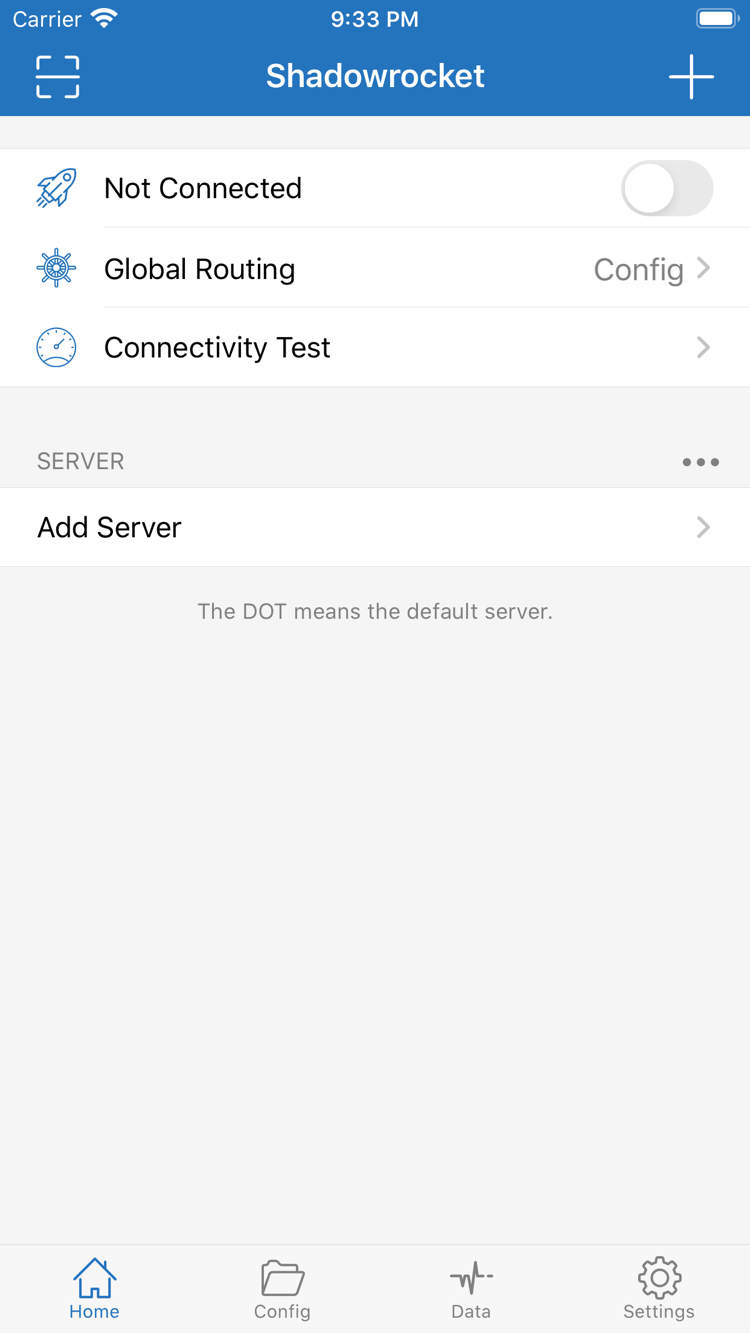
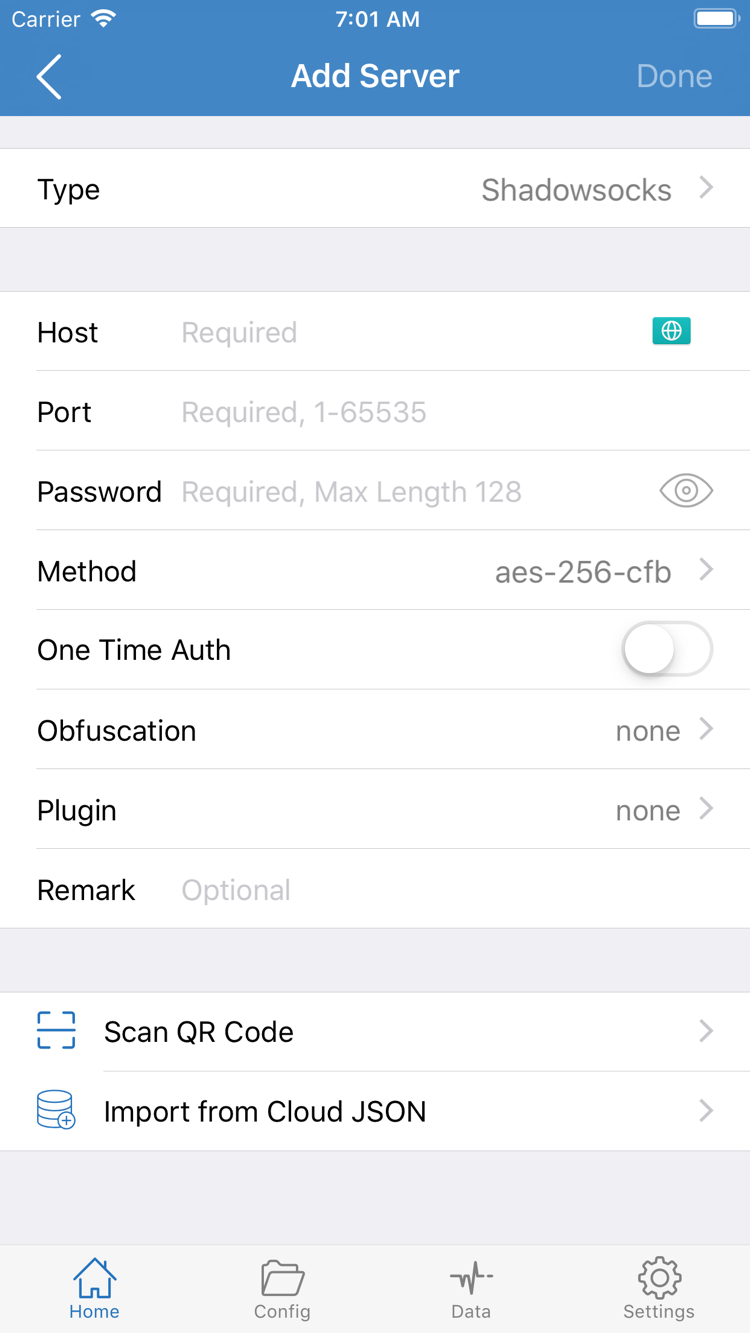
Check the product identity on its product page, then compare it with the actual interface. The screenshots help locate Home and Add Server. They do not mean a server is automatically included after installation, and they cannot confirm whether a connection has succeeded.
Shadowrocket Official App Store app icon
Check three details on iPhone / iPad
Developer: The product page should show Shadow Launch Technology Limited. A similar name is not a substitute for checking the developer information.
Official icon: Compare the blue-purple outlined rocket on a white background with the official icon shown here. Do not rely only on color or a search-result thumbnail.
App ID: The product link should contain id932747118. Confirm it before using the purchase or redownload button.
The iPhone / iPad version is a $2.99 one-time App Store purchase; the Mac, Windows, Android, and Linux versions are free. A listing with the same name marked free in the App Store is an impersonation. Do not apply the free acquisition method for other platforms to the iPhone / iPad product page. Accounts that have already purchased the app may see a redownload button; that is different from the price for a first-time purchase.
Check download sources on computers and Android
For Mac, Windows, Android, and Linux, use only the /dl/shadowrocket/ path on this site. Do not judge a source by the word official in a search snippet, and do not replace the links on this page with files copied elsewhere. Browser download history can help identify which page a file came from; a product name in the file name alone does not confirm its source.
The screenshots on the right show the official English App Store interface. In Home, you can identify Not Connected, Global Routing, Connectivity Test, and SERVER. In Add Server, you can identify Type, Host, Port, Password, and Method. The screenshot is for interface reference only. Use details provided by your existing service provider for the actual server fields.
Home: Check the connection control and Global Routing, then look for existing servers in the SERVER group.Add Server: Check Type and each field before adding manually. Scan QR Code and Import from Cloud JSON are visible at the bottom.
05 / New device or reinstall
Restore on a new device and move configuration
Getting the app again and restoring connection settings are separate tasks. Find purchase records through the purchasing account; save subscriptions, manually entered servers, and custom rules separately.
Redownload from Purchased on iPhone / iPad
On the new device, use the original purchasing Apple ID. Open App Store → Account → Purchased, find Shadowrocket, and download it again. Depending on the system version, this list may be under the Apps section. Follow the labels on your account page. If the button still shows a purchase price, first check the media purchasing account and storefront. Do not purchase again without checking.
iPhone and iPad can share one $2.99 purchase with the same Apple ID, so redownloading does not require another payment. The Mac, Windows, Android, and Linux versions are free; download them again from this site after changing devices. A purchase record does not automatically restore server details missing from a new device or prove that an existing subscription is still valid.
Save a working configuration before moving
While the old device is still available, record the configuration file, rule selections, and settings you need to keep. Save existing subscription links securely. For manually entered servers, check the protocol, address, port, authentication, and transport parameters. Do not save only the server display name; it cannot restore the fields needed to connect.
After installing on the new device, import a known working configuration, check the Global Routing selection, authorize the connection, and test access. Clear the old device only after confirming the new one works. Subscription links and configuration files may contain access credentials, so do not post them publicly. For troubleshooting, hide passwords, tokens, and personal details, and share only the necessary error message.
06 / App cost and connection requirements
Two pricing tiers and what you need to use the app
iPhone / iPad: one-time purchase
The iPhone / iPad version costs $2.99 as a one-time App Store purchase, with no monthly client fee. The Mac, Windows, Android, and Linux versions are free. The US storefront lists the price in US dollars; other storefronts use local currency. The product page shows the amount charged at checkout. The same purchasing Apple ID can redownload the app on both iPhone and iPad.
Mac / Windows / Android / Linux: get it here
The Mac, Windows, Android, and Linux versions are free; the iPhone / iPad version costs $2.99 as a one-time App Store purchase. For computers and Android devices, download the package for the relevant architecture from this site. Return to this page for future updates. Acquisition methods differ by platform, so you do not use the App Store purchase flow for a computer installer.
For first use, follow this sequence: import → select → connect → verify. First check that your existing subscription is complete, then select a server and check Global Routing. After enabling the connection, check both the system connection status and the actual access result. Turning on the connection control does not guarantee that the server is reachable, and a Connectivity Test result is not a substitute for verifying access in the app.
If a subscription fails to import, check whether the link is still valid, whether spaces were included when copying it, and whether your network can reach the subscription URL. If a server times out, check protocol settings, network status, and system time one at a time. Repeatedly purchasing the app will not resolve server-side issues. See the glossary for rules and parameters, and the settings guide for settings paths.
07 / Download FAQ
Before installing: frequently asked questions
These answers cover platform selection, system prompts, and store purchases. If the app opens but cannot connect, follow the connection troubleshooting steps in the troubleshooting manual.
Can I use Shadowrocket on a computer or Android phone?
Yes. The Mac, Windows, Android, and Linux versions are free; download the relevant package from this site. The iPhone and iPad version is a $2.99 one-time App Store purchase. All platforms require you to import your existing subscription or server details.
Which Mac version should I choose: Apple Silicon or Intel?
Open About This Mac from the Apple menu. Choose Apple Silicon if it shows an Apple chip, or Intel if it shows an Intel processor. Do not identify the chip by your browser name. Both installers require macOS 12 or later.
What should I do if Windows warns that the app may be risky?
First confirm that you downloaded the installer from this site. If SmartScreen shows the Windows protected your PC message, select More info, then Run anyway. If your device is managed by an organization or the option is unavailable, contact your device administrator. Do not disable system-wide security protections.
What if I cannot find Shadowrocket in the App Store?
The app is not available in the mainland China store. Check the country or region for the Apple ID used for Media & Purchases, then open the product link on this page. Find the region setting under Settings → Apple ID → Media & Purchases → Country/Region. Whether it can be changed depends on your account status and store requirements.
Do I have to pay again after changing devices or reinstalling?
On iPhone or iPad, use the original purchasing Apple ID to redownload from App Store → Account → Purchased. One $2.99 purchase can be used on both devices with the same Apple ID. The Mac, Windows, Android, and Linux versions are free; download the appropriate package again after changing devices.
Can I install it on iPad, and why is there no server after installation?
Yes. Check the App Store product page for the system requirements. The iPhone and iPad version is a $2.99 one-time App Store purchase; other platforms are free. Installing the client does not add a server automatically. Import your existing subscription or server details, then check Global Routing and connect.
This is the Shadowrocket official website and manual. After installation, continue with the user guide. To choose another installer, return to all platforms.